Contact support
Anything at all: bugs, questions, requests.
For a problem report, include your macOS version, your Safari version, and the version shown in Simple MarkUp > About Simple MarkUp.
What it needs
macOS 13.7 or later, and Safari. It’s free, and version 1.0 is coming to the Mac App Store.
Installing it
Five steps. Along the way Safari warns that the extension can read the page. It can, because that is how it describes what you marked, and nothing it reads leaves your Mac.
-
Get it from the Mac App Store
It’s free. A small Mac app with the Safari extension inside it.Simple MarkUp is free. It arrives as a small Mac app with the Safari extension inside it — that is how Safari extensions are distributed, so the app is not an extra thing you have to keep.
-
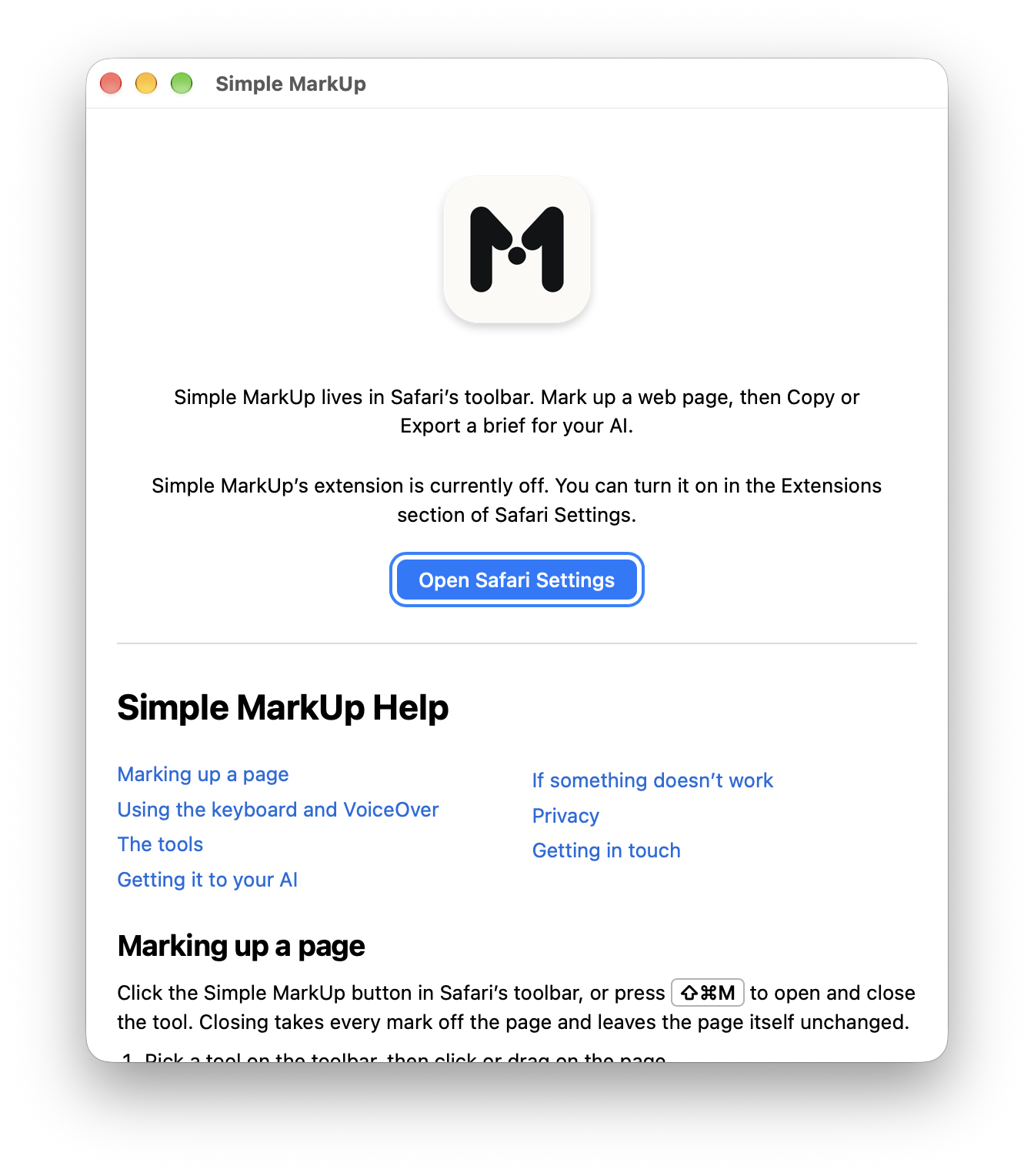
Open the app once
Opening it once is what tells Safari the extension exists.Opening it is what tells Safari the extension exists. You only do this once.
The window will say the extension is off. It is, until the next step — and the button there, Open Safari Settings, takes you to exactly the right place.
-
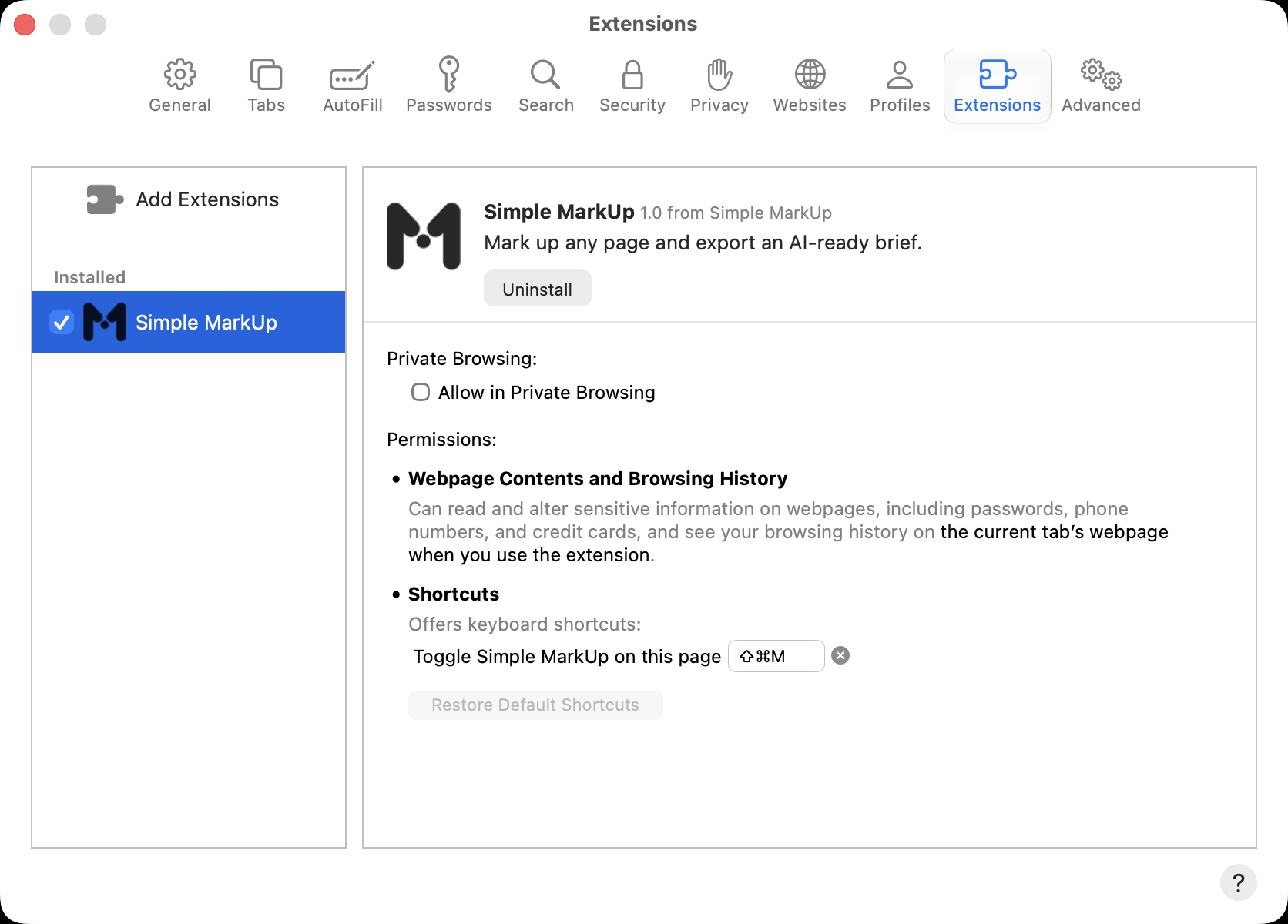
Turn it on in Safari’s settings
Safari > Settings > Extensions, then tick Simple MarkUp.Open Safari > Settings > Extensions and tick Simple MarkUp in the list on the left. Its button appears in Safari’s toolbar.
-
Let it see the page
Safari says it can read the page. It can, to describe what you marked; we never see any of it.Safari lists what an extension can do, and for this one it says: it can read and alter sensitive information on webpages, including passwords, phone numbers, and credit cards, and see your browsing history — on the current tab’s webpage when you use the extension.
Yes: the code running on your Mac can see all of that — it has to, or it could not describe what you marked. We never see any of it. There is no network code in the extension or in the app, so nothing is sent anywhere: not to us, not to anyone. Nothing leaves your Mac unless you send it yourself, after Copy or Export.
One thing worth knowing before you send one: the brief names the page you marked up by its full address, including anything after a
?or a#, and cuts short only a very long one. On a page you reached from a sign-in link or a password reset, that tail can be a key. It is a glance, not a worry, and the privacy policy says why it is not trimmed.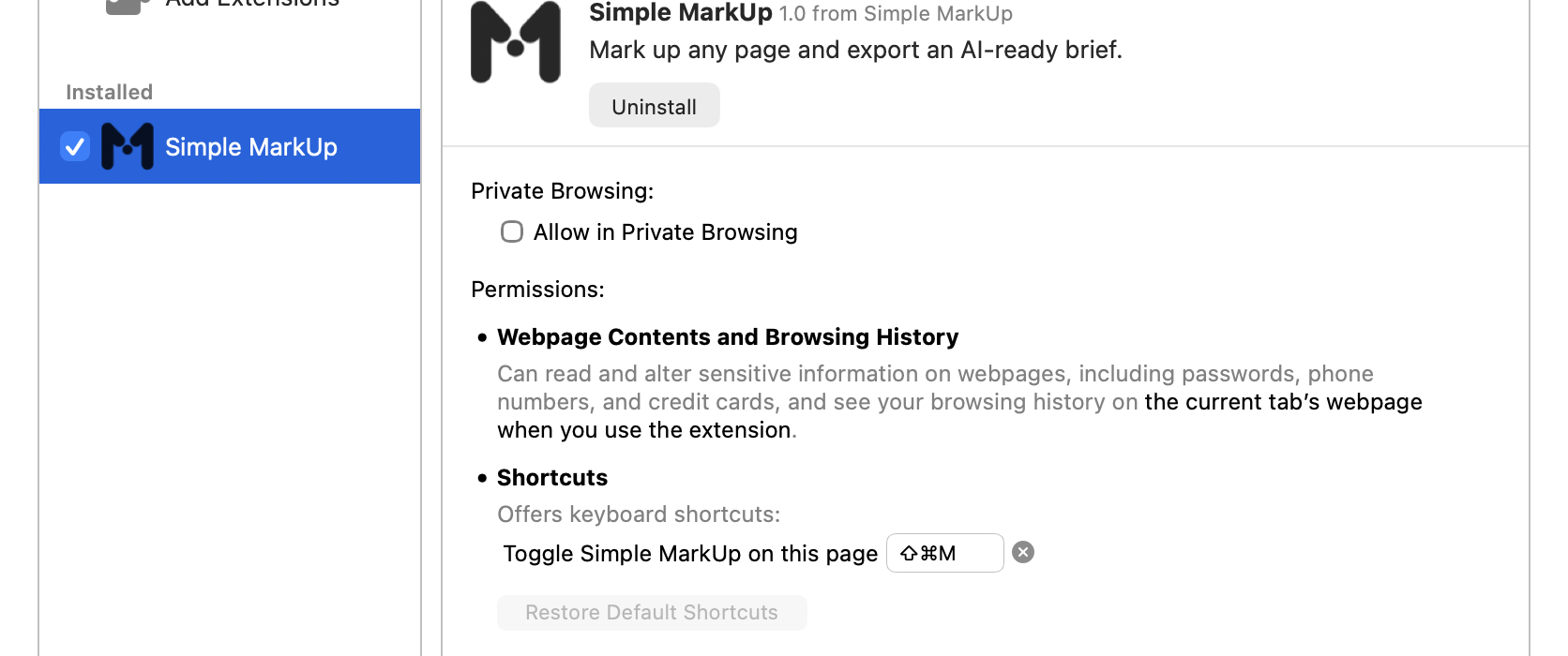
Why Safari’s warning sounds worse than it is
First, the part that sounds worse than it is. Simple MarkUp does read the page you turn it on for. That is how it writes the brief — it cannot describe the button you circled without looking at it. Somewhere in here Safari will tell you the same thing in stronger words; that warning is Safari's, it appears for every extension that touches a page, and it is accurate.
What it does with what it reads is the part the warning cannot tell you. It stays on your Mac. There are no accounts, no analytics, and no network code in the extension or the app at all, so nothing is sent to us — there is nowhere for it to go. What you mark up becomes a screenshot and a brief, and you send those where you choose: your clipboard, or the folder you pick. The privacy policy says it clause by clause.
-
Mark something up
Click its button in Safari’s toolbar, or press⇧⌘M.Click the Simple MarkUp button in Safari’s toolbar, or press
⇧⌘M. Either one starts you marking up. Closing takes every mark off the page and leaves the page itself unchanged. Working from the keyboard? Press⌃⌘Mnext, for a list of what you can mark on screen.


Things that come up
Is Simple MarkUp free?
Yes. Simple MarkUp is free, and requires macOS 13.7 or later and Safari.
Does Simple MarkUp need an account or sign-in?
No. There’s no account, no sign-in, and no analytics — nothing about you is collected at all.
Does Simple MarkUp send anything to an AI on its own?
No. Simple MarkUp does not talk to any AI. It makes a brief and hands it to you — what you do with it, including pasting it into an AI tool, is your choice.
Will it update itself?
Simple MarkUp never checks for updates itself; instead the App Store tells you when one is ready, and installs it for you if you have automatic updates turned on.
To see which version you have, open the app and choose Simple MarkUp > About Simple MarkUp. Safari > Settings > Extensions shows a number beside the extension's name too — the version on its own, where About also shows the build in brackets. If you are reporting a problem, quote the one in About.
Why are there two Copy buttons?
Because one was worse. Copy used to put the picture and the brief on the clipboard together, and the app you pasted into would take whichever it preferred — the same app took the image one time and the text the next, from identical clipboard contents. Nothing in an extension can decide that for the app receiving it, so the choice moved to you: Copy Screen puts the picture there, Copy Prompt puts the brief. One each, and you know which one you are holding.
Will exporting again overwrite the last one?
No. Each export is a new pair of files named for the moment you made it, so marking the same page twice leaves you with both and never quietly replaces the earlier one.
Export keeps asking me where to put it
Deliberate, and it will keep doing it. A brief only ever goes to a folder you chose in that moment, so Export shows the panel every time rather than writing somewhere silently. It opens at the folder you used last, so in practice it is one keystroke, but the choice is always yours, and nothing on your disk is written without it.
Where did my marks go?
Turning Simple MarkUp off for a page hides your marks and keeps them — switch it back on and they are where you left them. Clear all is the one that erases them, and Undo brings them back if you pressed it by mistake. Marks are kept for as long as the browsing session that made them, so they do not survive quitting Safari (in a Private window, until it reloads or goes to another page — a site that switches pages without reloading keeps them); if you want them to last, export the brief.
Simple MarkUp can’t run on some pages
Simple MarkUp only runs on ordinary web pages. Safari’s own screens — Settings, the Start Page, the Extensions gallery — are off limits to every extension, so neither the button nor ⇧⌘M will do anything there. On a file opened straight from your Mac (a file:// address), pressing the button or ⇧⌘M opens a window that says Simple MarkUp can’t run there — open the file from a local web server instead, an address starting http://localhost. Open an ordinary web page and it works as usual; nothing carries over from the attempt. In Reader, pressing ⇧⌘M shows nothing; leave Reader (⇧⌘R) before you press it.
Copy doesn’t work on some pages
Simple MarkUp can copy only on a secure page, such as https or http://localhost. On a plain http page, Copy Screen, Copy Prompt and the result card’s copy button can’t use the clipboard. Use Export there instead; it writes the brief and the screenshot to a folder you pick.
Some of my marks aren’t in the screenshot
The screenshot is the part of the page you can see. Marks further up or down are not in the picture. The panel tags each of those Off-screen, the brief lists them with the same tag and says near the top which numbers were in view, and the result says how many were left out. Do one screenful at a time: copy the screen and the prompt and paste both, then scroll to the other marks and copy both again. Export writes the picture and the brief together, so scroll and export again.
The page has a dialog or pop-up open
This version of Simple MarkUp does not work on top of a page’s own dialog or pop-up. Close the page’s dialog first, then open Simple MarkUp.
Part of a page is missing from the Markup elements list
Some sites build parts of their pages as web components, and this version does not list what is inside them. Mark those parts with a rectangle or an arrow; a callout marks the whole component.
The marks panel takes up too much room at high zoom
At very high page zoom the marks panel leaves the page little room. Zoom out a step while you mark up, or hide the panel with ☰.
Tell us what to build next
We want to hear from you. What you tell us shapes how this tool evolves.
Bugs are not the only thing worth writing about. A tool that is missing, a mark that is awkward to place, a brief that says the wrong thing about your page — all of it is useful, and it is a shorter message than you think.
Same address as everything else: simple-markup@got2.app, with Idea in the subject if you want it to land in the right pile.